Show a real input and result in one app video.
Two ordered images—a disclosed synthetic portrait and its actual Tonebook web result—become one clean, silent six-second video. Inspect both originals and the exact file before using the same layout for your app.
Free clean single video · No account required · Browser format is MP4 or WebM
Your new media project starts empty. Example copy adds editable text and layout only.
This web run returned Soft Autumn and warm undertone. The video preserves that actual downloaded result and shows the input beside it.
Tonebook and ReelParcel are first-party Sparkwell products. The input is a synthetic adult portrait; the result is the real downloaded output of its web analysis. This video joins two still images. It does not show analysis happening, customer use, accuracy, or the iOS app.
Inspect the original inputs.
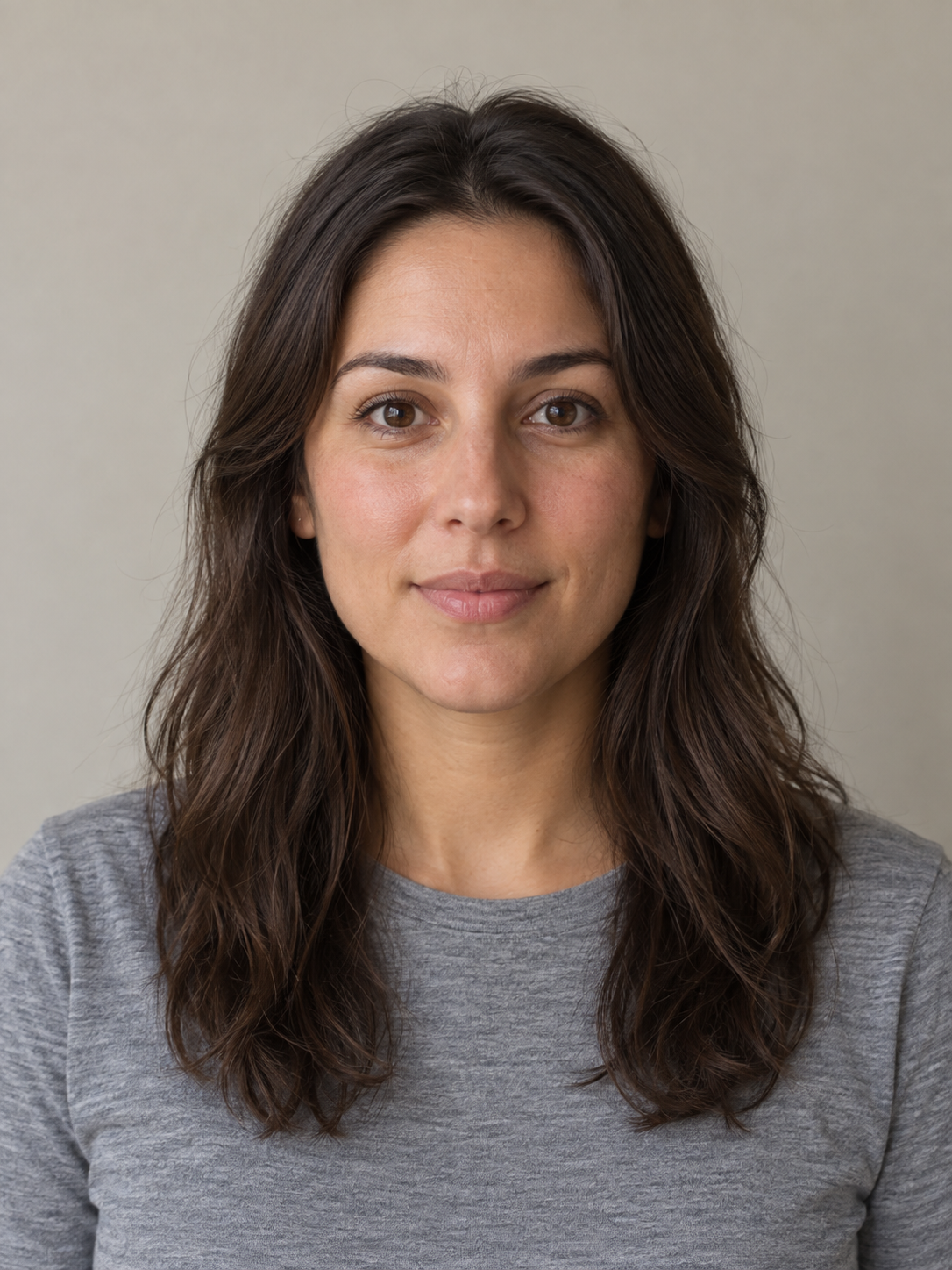
An authorized synthetic adult portrait used for this first-party demonstration. It is not a customer's photo.
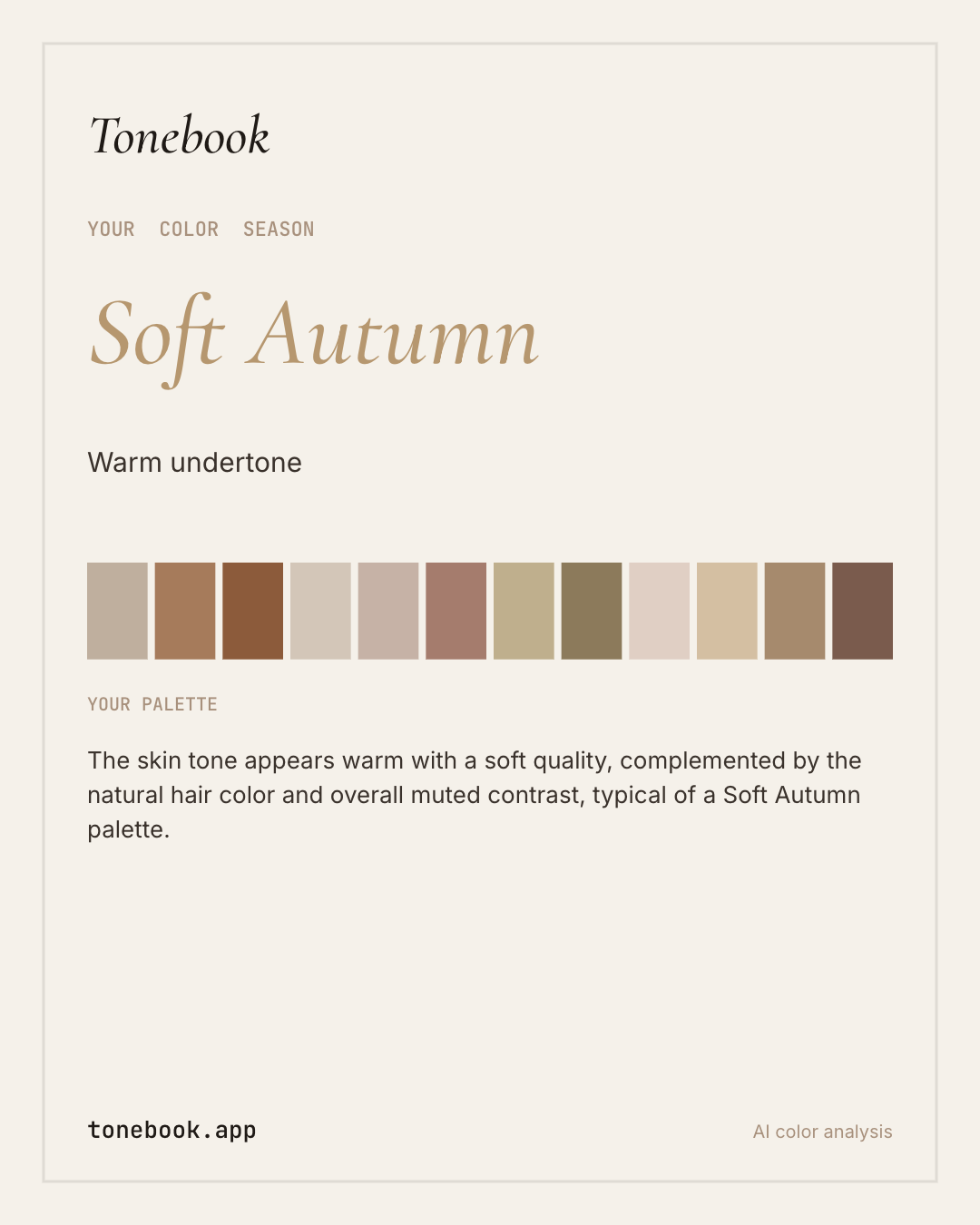
The actual downloaded result from this portrait's Tonebook web run. It returned Soft Autumn and warm undertone. This is one observed web result, not evidence of accuracy or an iOS workflow.
Build this sequence in Studio.
- Keep the input and its real output together. Use the two original PNGs below, or collect an authorized input and the actual corresponding output from your app. Remove private information. This example's synthetic adult portrait and downloaded web result are a disclosed first-party demo.
- Set the source order. Choose Make this with my app to open an empty evidence-pair project, or Start with editable example copy to fill only the message and layout. Add exactly two images: portrait first, downloaded result second. Use Up and Down to correct their order and confirm media permission.
- Describe only the observed result. Use Walkthrough and select “Evidence pair · two owned images” under Video layout. Leave detail enlargement off. Enter the exact copy, source disclosure and observed-action label below. The complete input appears first, then remains visible as an inset over the complete result; ReelParcel creates no tap or analysis footage.
- Watch and download the reviewed file. Review the selected variant's claims, choose Create video preview, and watch all six silent seconds at phone size. Confirm that the visible result matches its source, the synthetic-input disclosure stays visible and the CTA is readable. Confirm the full-video review, then download the same clean MP4 or WebM. The linked example is the actual MP4.
Use the exact settings and copy.
These settings belong to the example above. For your app, replace every claim and disclosure with what your original media supports. Source-dependent selections need to be made again after a new upload.
- Input order
- Exactly two PNGs: synthetic portrait first, actual web result second
- Structure
- Walkthrough · Evidence pair · two owned images
- Source details
- Detail enlargement off; show each complete image
- Observed action
- Web run: Soft Autumn · warm undertone
- Always-visible disclosure
- Synthetic portrait · real web result
- Accent
- #B3AA70
- File
- Clean single MP4 · 1080×1920 · 6 seconds · no audio track
- App name
- Tonebook
- What happens in this clip?
- One web analysis, shown honestly
- Opening line
- One portrait. One web result.
- Explanation
- This web run returned Soft Autumn and warm undertone.
- Call to action
- tonebook.app/color-analysis
- Always-visible source disclosure
- Synthetic portrait · real web result
A real result supports a specific claim.
“This web run returned Soft Autumn and warm undertone” describes the supplied output. It does not establish that the classification is accurate, that another input would receive it, or that the iOS app follows this workflow. An action label identifies what happened outside the video; two still images do not show that action happening.
Keep the input attached to its corresponding output. If the result is a sample, edited mockup or unrelated run, disclose that and narrow the message. If the task needs an actual control change or transition, capture a screen recording instead. Get permission before using a customer’s photo.
Review source order, labels and the destination.
PNG, JPEG or WebP sources can be up to 10 MB each. This evidence-pair layout requires exactly two selected images, a factual observed-action label and a source disclosure. Adding a third image or leaving a required field blank blocks this video; keep the original files and correct the selection. If the browser cannot export video, use the same owned images in a carousel instead.
The export is vertical 1080×1920. Open an unpublished draft in your intended destination and check crops, app controls and caption overlap before posting.
Keep the setup for a distinct next update.
After downloading, choose “Save this setup for your next update,” then save a named project. “New demo for this app” asks what changed and creates a separate editable project. Replace the old source or message as needed, then confirm permission and review its claims again. Your original project stays unchanged.
Device projects stay in this browser. Storage may be cleared or evicted and does not sync; keep the original files and a copy backup outside the browser. No account is required. After downloading, check Downloads and open the file before closing Studio.
For an update explained by several screens, use the five-slide app update carousel guide. It uses actual screenshots and shows the original sources beside the downloaded slides.