How to make an app update carousel from real screenshots.
Choose one task, show the screens that support it, and give each slide one job. Here is a complete screenshot-to-carousel workflow you can use in ReelParcel or another editor.
Free single PNG ZIP · No account required · Desktop Chrome tested
An app update post should explain a specific change you have confirmed. If you are introducing an existing workflow, describe it that way. Our example shows GoScript’s script-to-takes workflow; it does not claim a new release. GoScript and ReelParcel belong to the same Sparkwell portfolio, so this is a first-party demonstration, not a customer endorsement or a growth result.
Choose sources before writing the hook.
Start with a short, factual sentence about what someone can see or do. Then collect the fewest screenshots that make it understandable: a starting state, the relevant screen, and a result or place to continue. Remove private information and get permission for every image. Keep original screenshots alongside the export so you can check the finished copy against them.
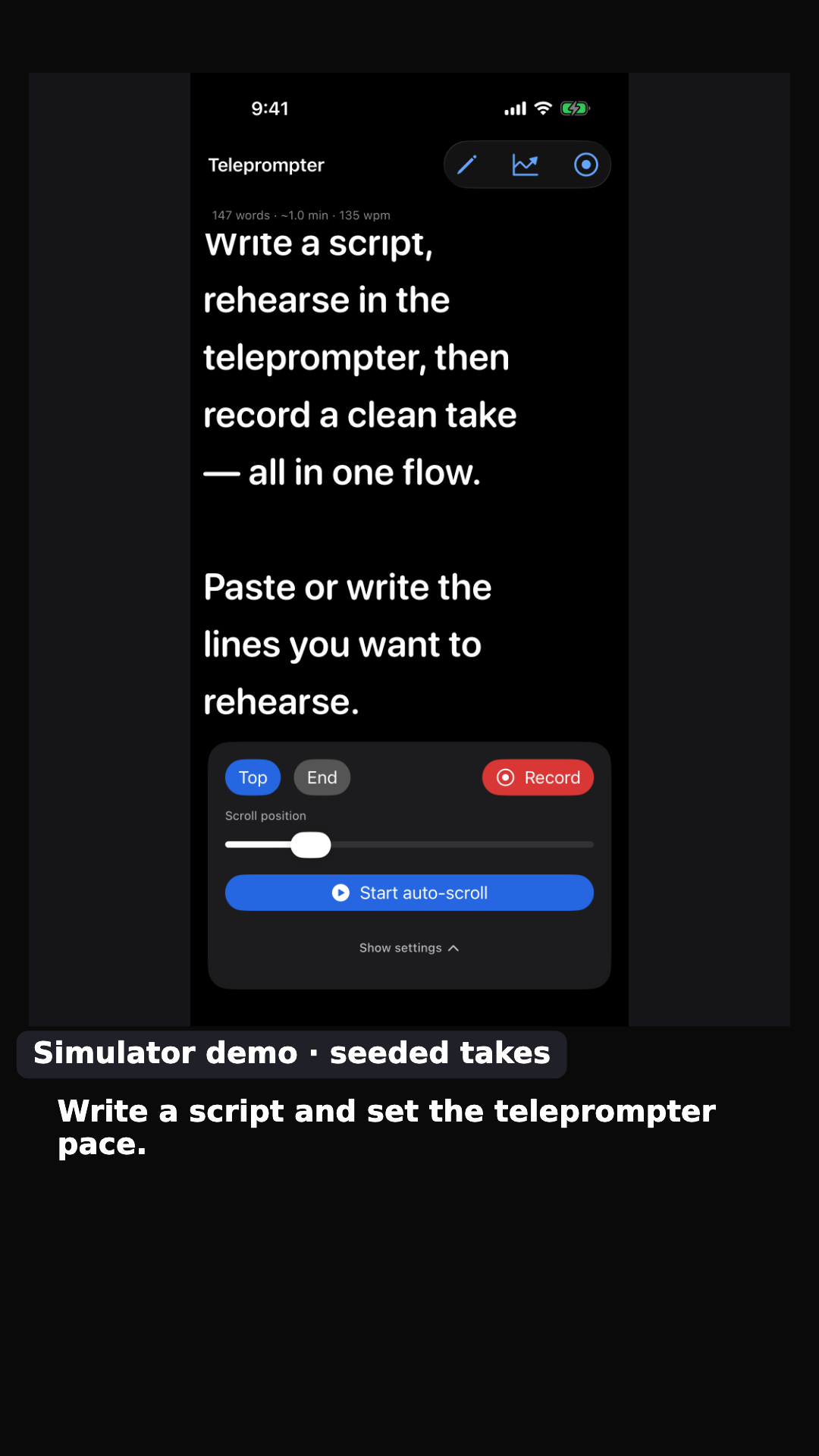
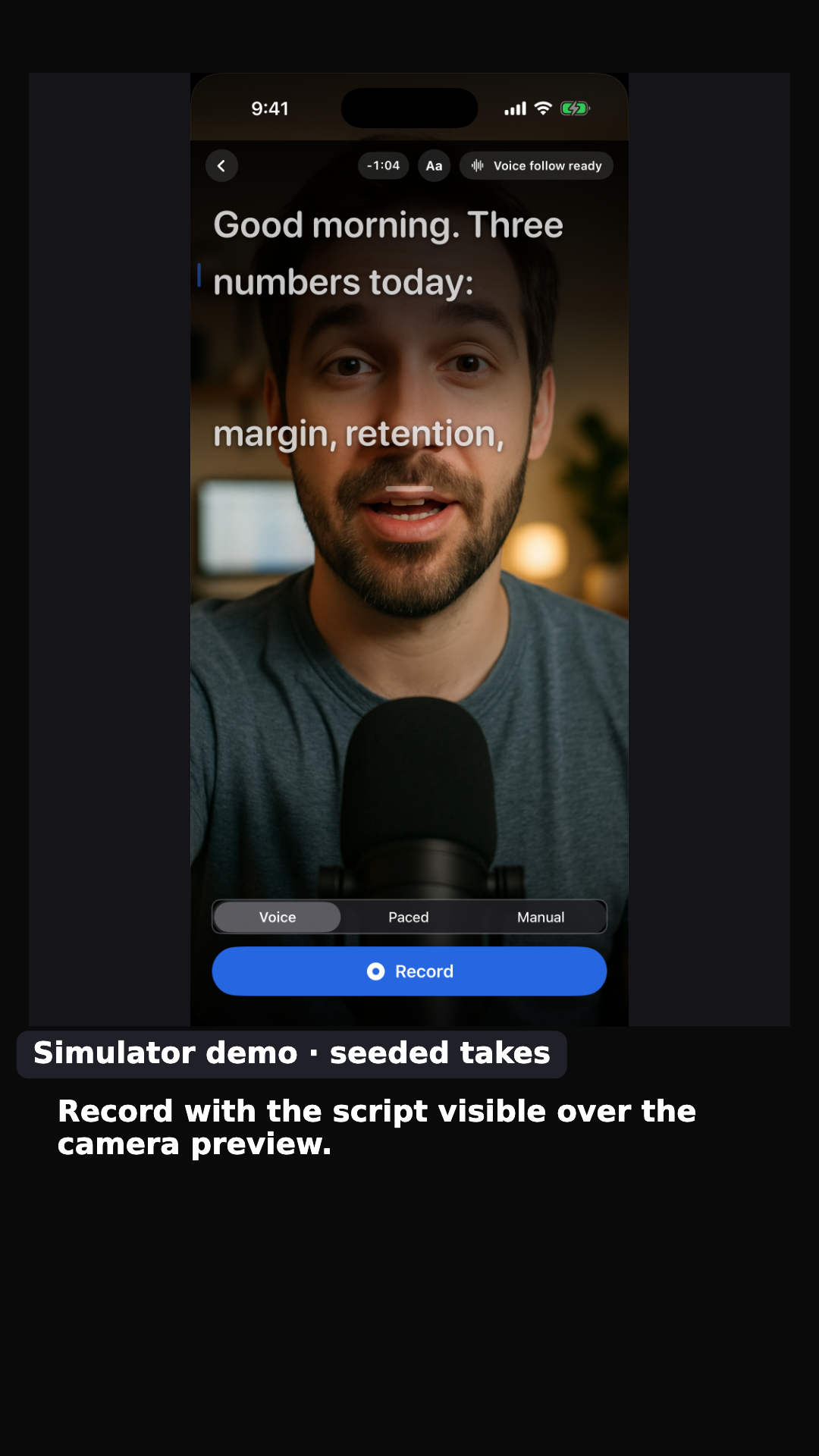
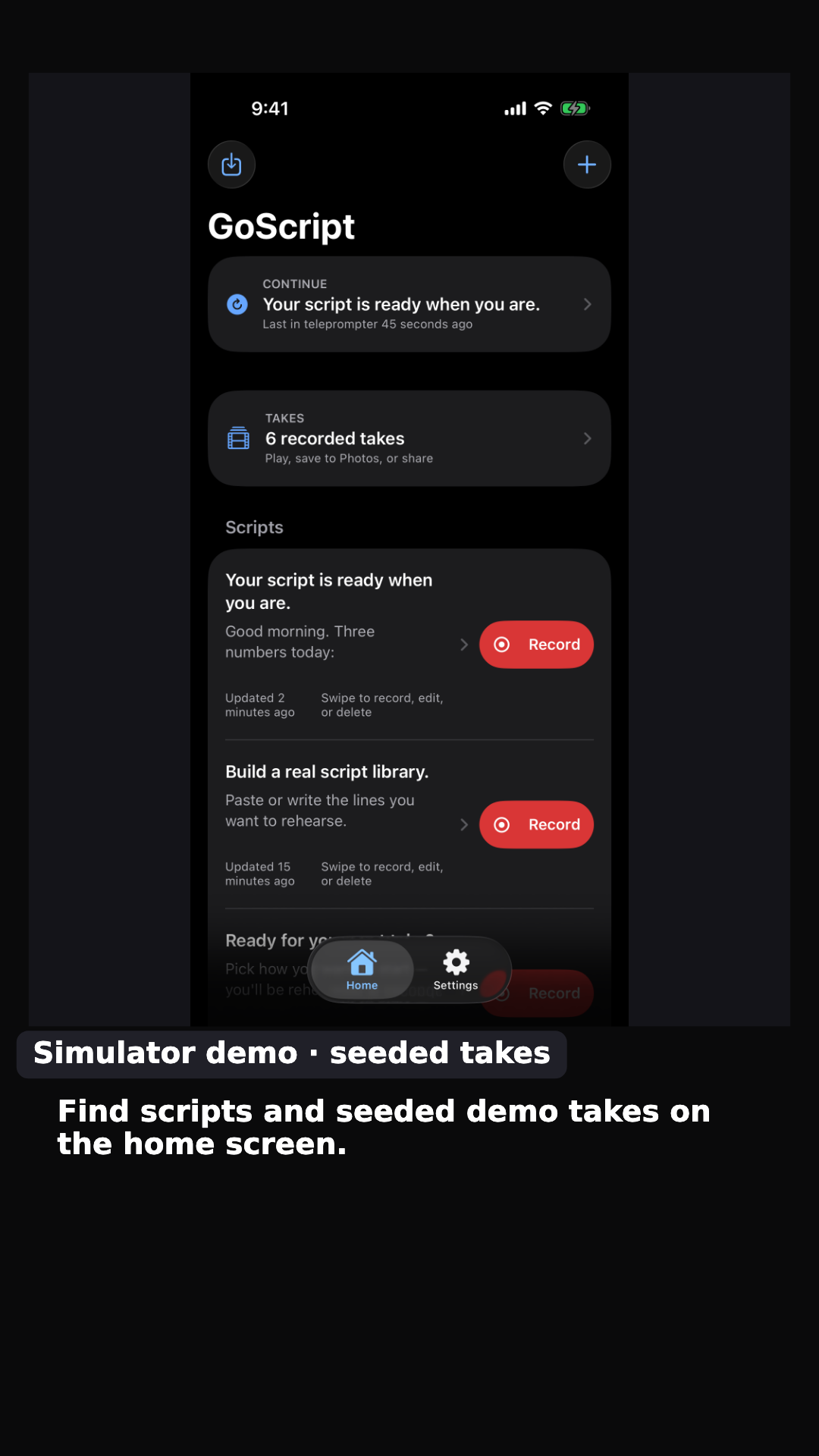
For GoScript, we used these three original simulator captures in this order:
- Teleprompter source PNG: a sample script and available controls.
- Camera-preview source PNG: the script over demo camera media, with Record available.
- Home source PNG: scripts and seeded demo takes.
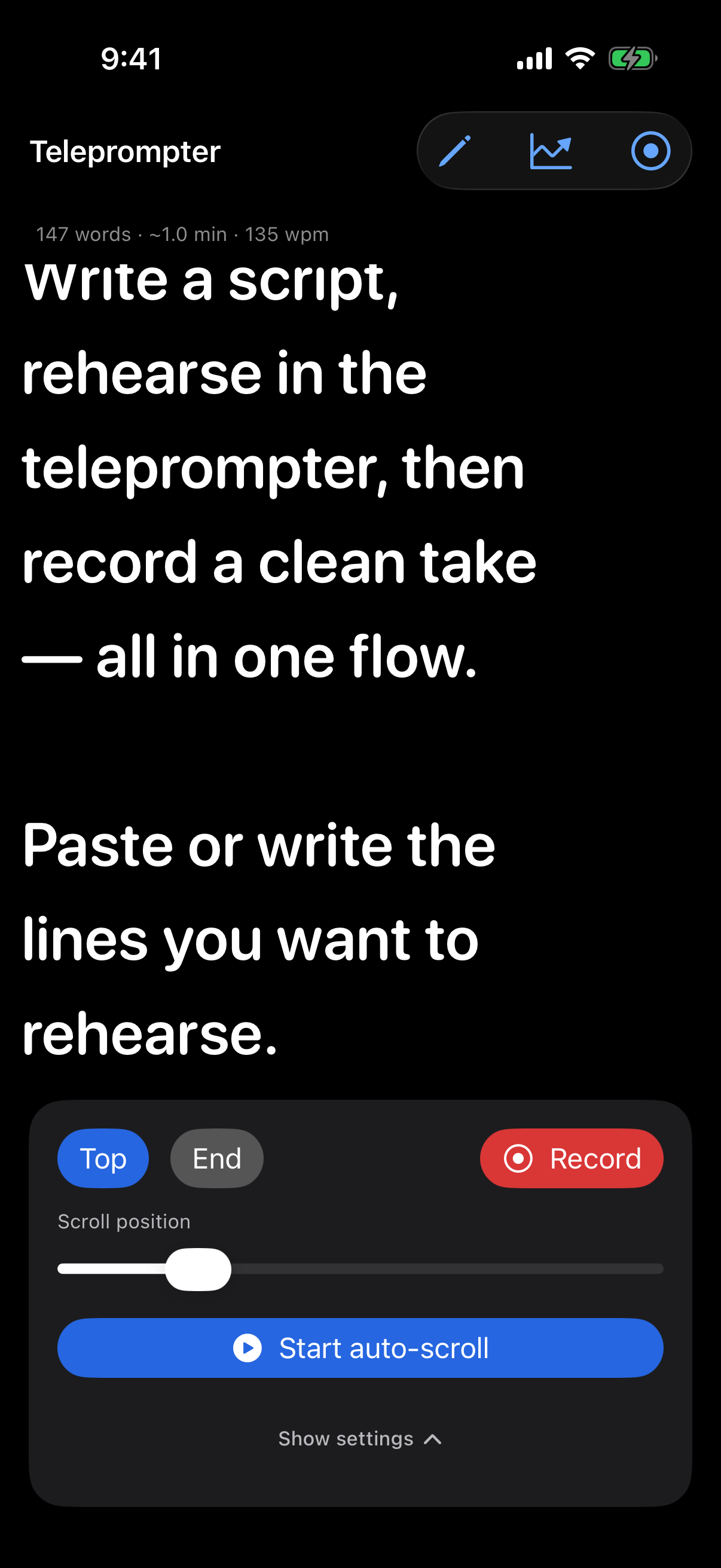
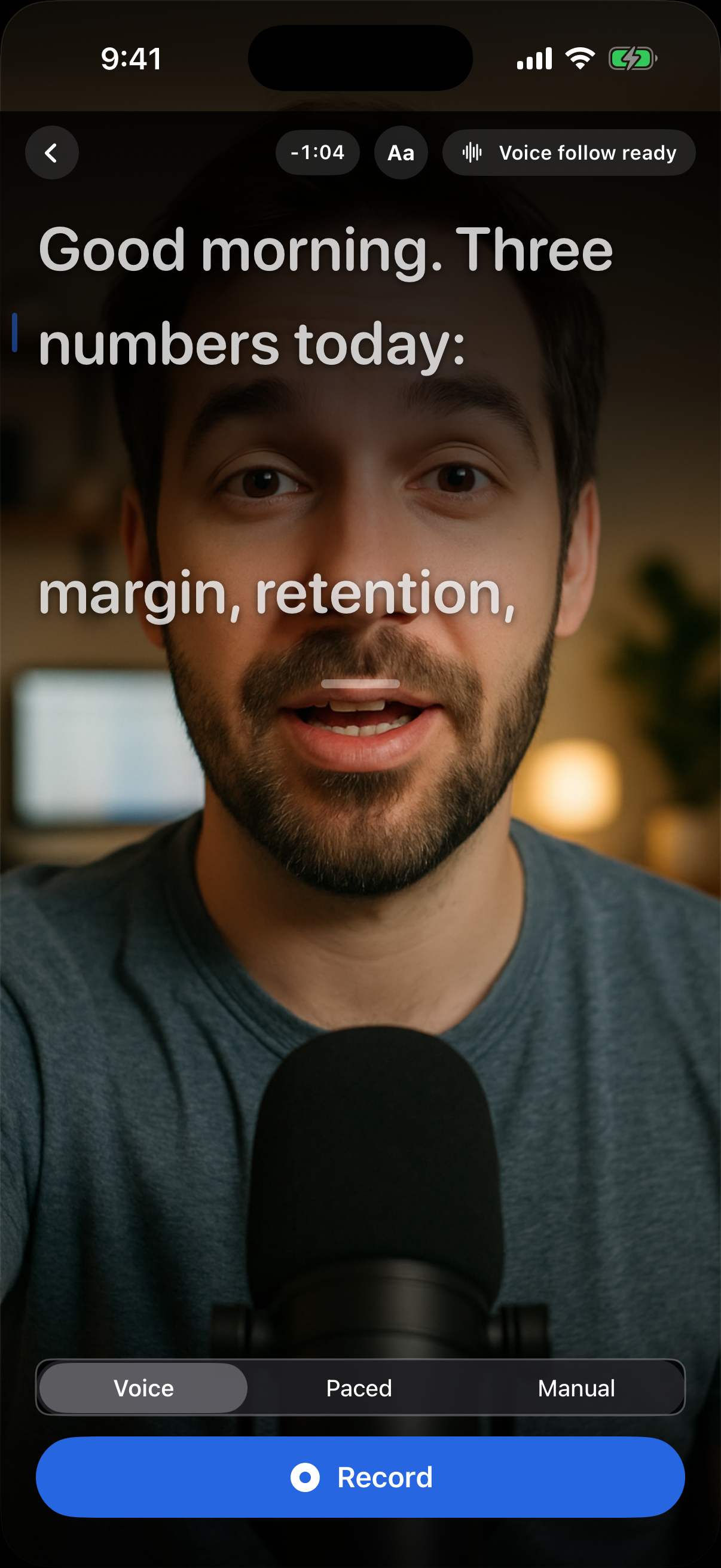
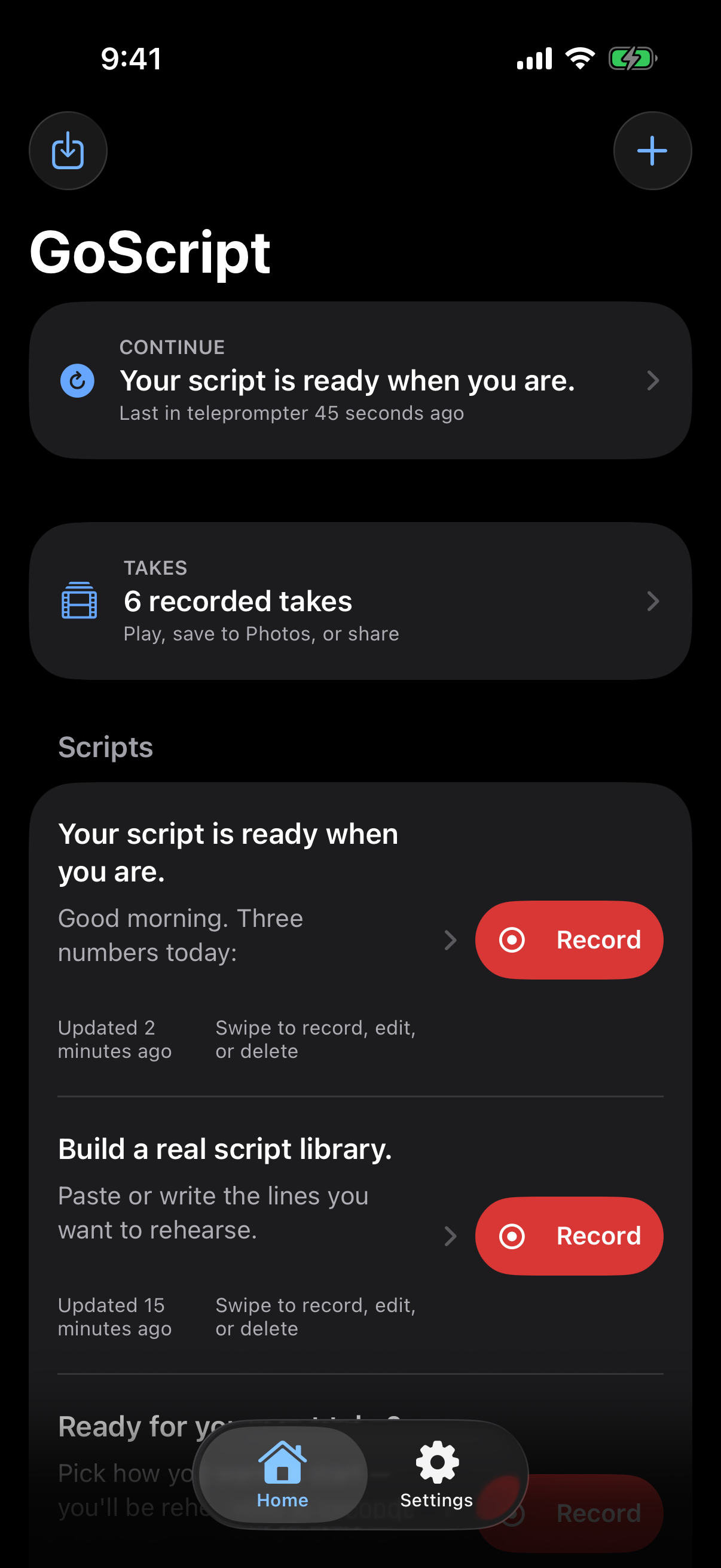
A screenshot of a Record button does not prove a take was recorded; a seeded takes count does not prove real usage. That is why every example slide carries “Simulator demo · seeded takes.” Keep disclosures visible in the output rather than relying on a caption that might be separated from the images.
Give five slides five clear jobs.
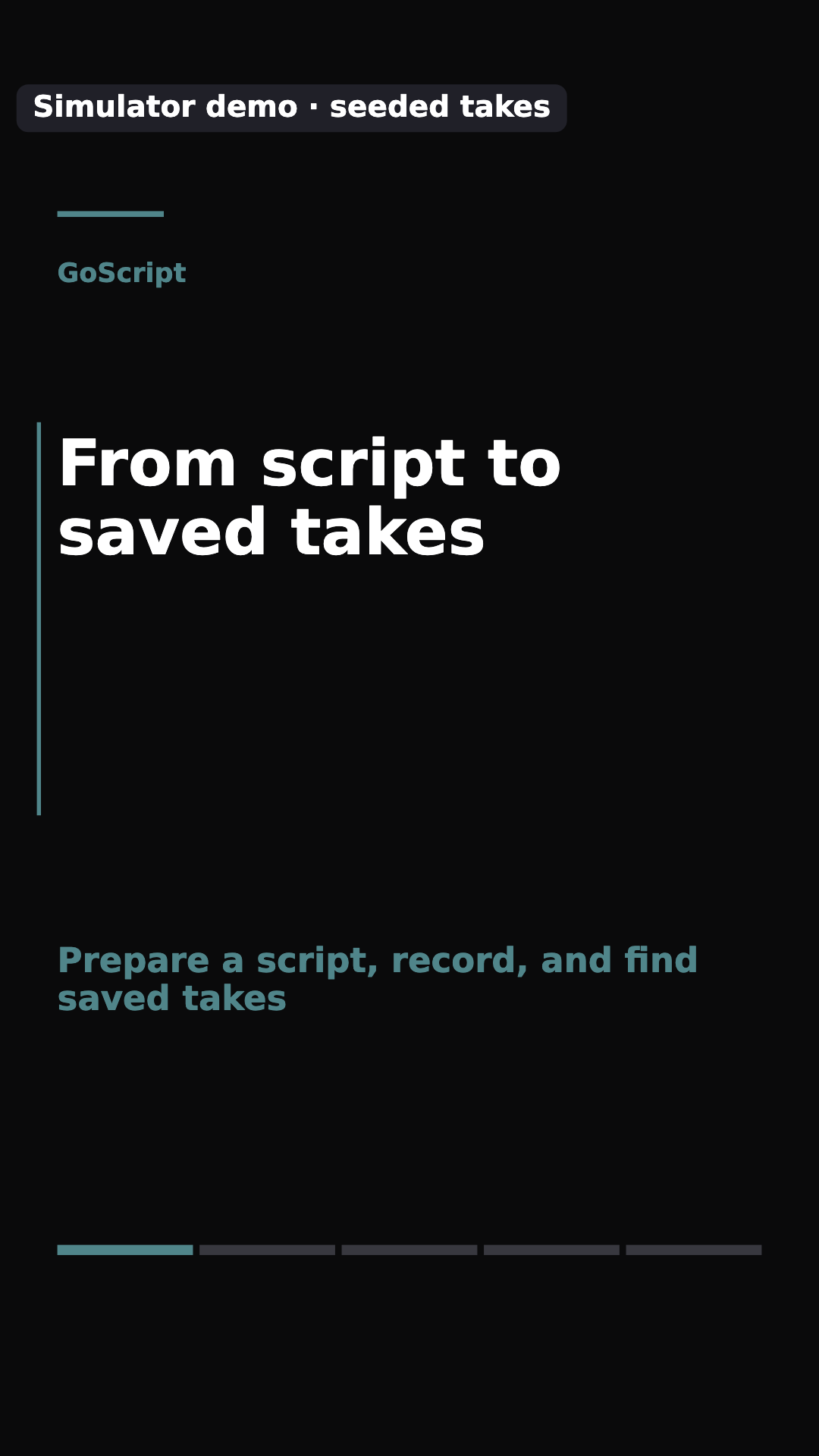
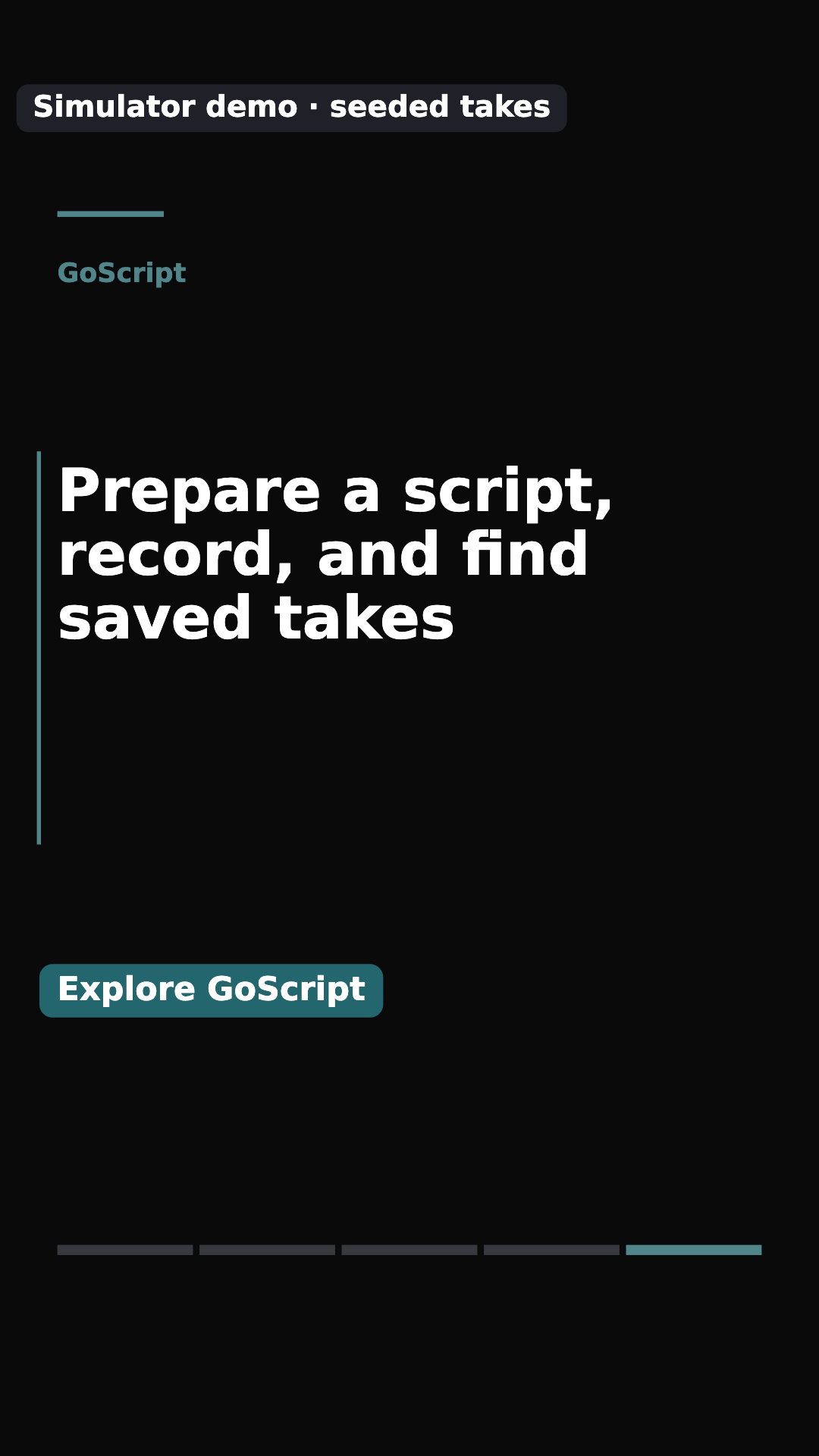
Three screenshots become five slides when you add an opening and a closing. These are the actual clean PNGs reviewed and downloaded from Studio, not page mockups. Open any image for the full-resolution file.
Build the same sequence in Studio.
- Add your app media. Select up to eight owned PNG, JPEG, or WebP screenshots, each up to 10 MB. Use “Up” and “Down” to arrange the sequence. Confirm media permission before previewing.
- Write one confirmed claim per screen. Fill in “App name,” “What happens in this clip?,” “Opening line,” “Explanation,” and “Call to action.” Under “More message details,” enable “Use different text for each screenshot” so each selected screen gets its own explanation. Put demo context in “Always-visible context (optional).”
- Review the selected variant. Compare every line with its source. Confirm the checkbox stating that you reviewed the variant’s product claims, then choose “Review slides.” Use the “Optional phone-size slide checklist” to inspect all five slides. Choose “Download carousel ZIP” after your review.
In another editor, use the same source order and five-part outline. Keep the full app interface visible and place a short explanation beside each screenshot. If one sentence needs several unrelated screens to justify it, narrow the claim before decorating the slide.
Review the downloaded files, then the destination.
Unzip the download and inspect every PNG at phone size. Can you read the opening without zooming? Does the product screen still explain the claim? Is the disclosure visible? Shorten crowded text, check that controls remain recognizable, and compare the slide with the original capture after any change.
ReelParcel exports 1080×1920 (9:16) slides. A feed carousel may crop that vertical shape, and destination controls or captions may cover text. Import an unpublished draft into your intended destination and inspect every slide. Resize in another editor if necessary. These files verify a browser export; destination acceptance and posting results remain unverified.
Need actual interaction instead? Capture an owned screen recording and use the free app demo video maker. Screenshots create a silent storyboard. Selected recording clips also export silently in the browser; supported untrimmed recordings can preserve capturable source audio. Video downloads as MP4 or WebM depending on browser support.
Keep the sources for your next update.
Open “Save on this device” and choose “Save named project” to keep the media and edits locally. Later, open it from “Saved projects,” choose “New demo for this app,” and describe the confirmed change. Review the new copy and save it as a separate project. Local browser storage can be cleared or evicted and does not sync; keep your original media and downloaded ZIP outside the browser too.
The free flow does not upload selected source files to ReelParcel. A clean single carousel needs no account and has no watermark; the optional three-output pack remains watermarked. Start with one useful sequence, then let the visible product evidence determine what you can honestly say.